
Official Page requirements at a glance
LinkedIn’s Page image specification sets a maximum of 3 MB and accepts PNG or JPEG. For the Page logo, it lists 268 × 268 pixels as the minimum and recommends 400 × 400. For the Page cover, it lists 1512 × 256 pixels as both the minimum and recommended size.
These are Company Page branding requirements. This evergreen guide records the official help checked on the date above; it does not report a new limit or a breaking change. Check the current Page upload instructions again before exporting a major brand update.
Sources for these requirements: LinkedIn Help — Image specifications for your LinkedIn Pages and Career Pages; LinkedIn Help — Photo won’t upload to your profile; LinkedIn Help — Share photos on LinkedIn.
Choose the destination before choosing a file limit
A personal profile is a different destination: LinkedIn’s profile troubleshooting page gives an 8 MB maximum, PNG/JPG formats and a recommended personal background of 1584 × 396 pixels. Do not use that background size as the Company Page cover specification.
For organic photo posts, including photos shared as a Page, LinkedIn’s sharing help gives a separate 5 MB upload limit. A feed photo is not the Page’s logo or cover. Advertising, article covers and URL-preview images are also separate jobs; the branding dimensions here should not be copied into those workflows.
Compare personal profile and organic-post requirements — Use the separate guide when you are preparing a headshot or feed photo.
Step 1: prepare the composition from your master artwork
Keep a full-quality master and export a working copy. For a logo, start with square artwork and check that the whole mark has breathing room. A long wordmark squeezed into a square may be technically valid but unreadable beside company updates. Use an approved compact brand variant if you have one.
For a cover, arrange the artwork in a 1512 × 256 canvas in your design editor. Keep the main message near the centre and avoid relying on small text or edge details. LinkedIn warns that covers can be trimmed on different screens and that important details should stay away from the edges, especially the lower-right corner.
CompressImageTo’s current manual resize fits proportionally; it does not crop, add padding or reposition your logo. Prepare the square or wide composition in an editor first. Turning off Keep aspect ratio to fill a box can stretch the brand mark.
Step 2: open the existing size tool and set a safe target
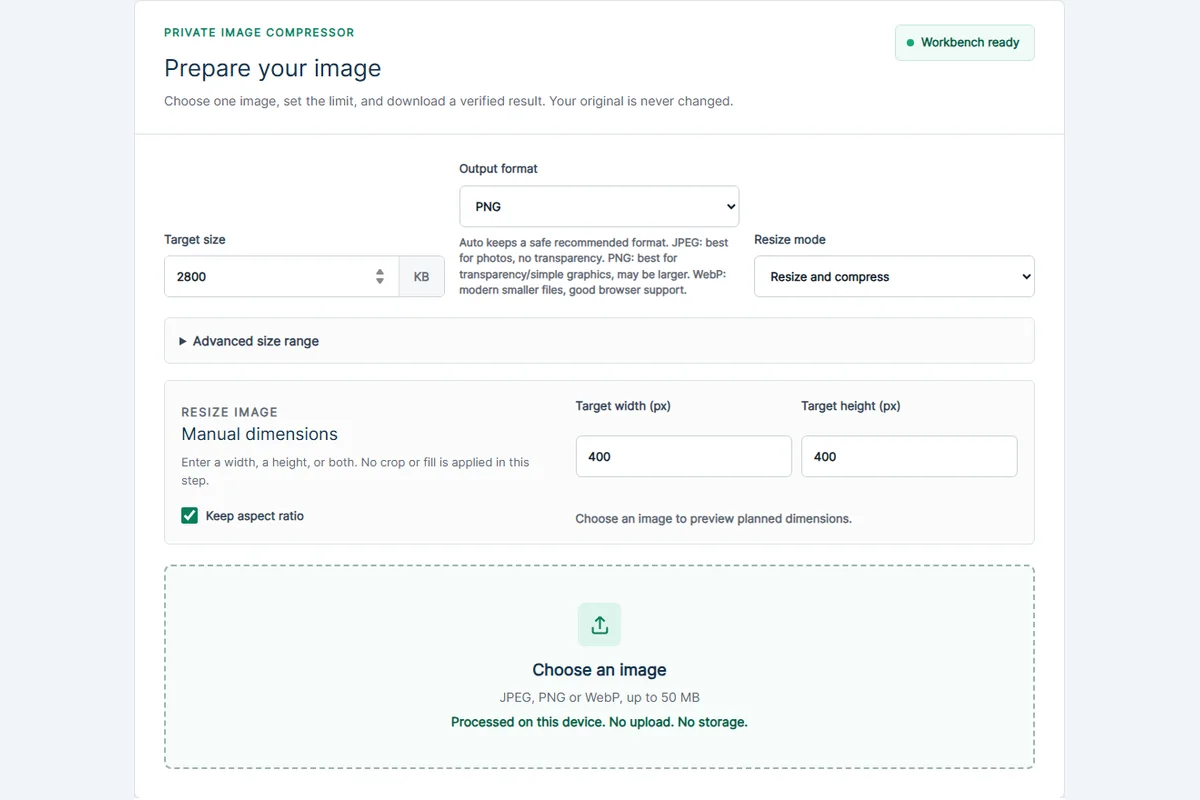
Use the 3 MB image compressor linked below. It starts with Target size at 3072 KB. Change that field to 2800 before processing this upload: the tool uses 1,024 bytes per KB, so 2800 KB is 2,867,200 bytes, below both decimal and binary interpretations of 3 MB. This is our suggested safety margin, not an extra LinkedIn requirement.
Leave Minimum size (optional), under Advanced size range, empty. LinkedIn’s Page help gives a maximum, not a minimum byte count. You do not need to make a small, clear logo larger just to approach the ceiling.
Open the 3 MB image compressor — Change Target size from 3072 to 2800 KB, then choose the format and dimensions described below.
Step 3: choose PNG or JPEG and the correct resize mode
Set Output format explicitly to PNG or JPEG. Do not leave Auto recommended selected if you need to ensure an accepted Page format, and do not choose WebP for the final Page upload. The tool can read static JPEG, PNG and WebP inputs; it does not accept arbitrary SVG, HEIC or animated files. Export unsupported artwork to a supported static format in your editor first.
PNG is a practical starting point for flat logos and transparency; JPEG can suit an opaque photographic cover. JPEG cannot preserve transparency. If you need an opaque version of a transparent design, prepare the intended background in your editor before conversion. LinkedIn notes that transparent logos appear on white, so inspect the mark on that background.
If the dimensions already suit the Page, leave Resize mode on Compress only. Otherwise choose Resize and compress. For a prepared square logo, enter Target width (px) 400 and Target height (px) 400. For a prepared cover, enter 1512 and 256. Keep Keep aspect ratio selected in both cases.
Choose one source image and inspect Planned output. With both dimensions entered, the tool fits inside that box without cropping. A rectangular logo source may therefore remain rectangular. If the plan does not match your intended composition, return to the design editor rather than stretching it. Upscaling a tiny source cannot restore missing detail.
Read the manual resize and format walkthrough — See how proportional fitting and explicit format selection work in the current tool.
Step 4: process, download and inspect the actual file
Select the processing button after reviewing the settings. Check the result’s size, Dimensions, Output format and Target status, then use Download verified image. Open that downloaded copy at its actual display size. For a logo, look for broken outlines or fuzzy lettering; for a cover, check whether small text and gradients still look clean.
A clear file already below the maximum does not need repeated compression. If the PNG cannot fit at a useful quality, simplify unnecessary artwork in the master or try an opaque JPEG copy where appropriate. Do not keep recompressing the last downloaded JPEG: return to the master for each attempt.
Processing stays in your browser; CompressImageTo does not upload the image to LinkedIn or store it for processing. You upload the saved copy yourself through LinkedIn’s Page controls. Technical verification here is not a guarantee of LinkedIn acceptance or final display quality.
Step 5: inspect the Page preview and diagnose any rejection
Use the logo or cover editing control in the Page administration view, select the downloaded copy and review LinkedIn’s preview before saving. Check the published Page on desktop and mobile. If the cover message is cut off, move it inward in the source artwork; lowering the byte count will not change its position.
If the file is refused, read the exact message. A size error calls for checking the saved file’s bytes; a format error calls for a real PNG/JPEG conversion, not a renamed extension. A dimension error calls for checking the downloaded pixel dimensions and the composition. Confirm that you selected the processed copy rather than the original master.
If the editing control is missing, check that you are managing the intended Page with suitable access. If the file meets the current instructions but saving still fails, try another browser and consult LinkedIn Help. Repeatedly shrinking a logo cannot solve an account-access or service problem.
Official sources and dates
The requirements above were checked against these pages. Our preparation targets and worked settings are editorial suggestions, not additional service rules or tested acceptance results.
- LinkedIn Help — Image specifications for your LinkedIn Pages and Career Pages — Checked 28 October 2026. Displays “Last updated: 2 months ago”; this is not an exact revision date or evidence of a newly announced change.
- LinkedIn Help — Photo won’t upload to your profile — Checked 28 October 2026. Personal-profile guidance; displays “Last updated: 2 years ago”.
- LinkedIn Help — Share photos on LinkedIn — Checked 28 October 2026. Organic photo-sharing guidance; displays “Last updated: 2 years ago”.
Requirements can change. Follow the current service instructions and the notice for your application before submitting.
Related tools
3 MB image compressor
Editable KB target, manual dimensions and explicit PNG/JPEG output.
Keep learning
LinkedIn profile photos and post photos have different upload requirements
A headshot and a feed graphic do different jobs. Choose the destination first so you do not shrink a post to avatar dimensions or apply the wrong file limit.
How to resize a LinkedIn profile picture or banner
LinkedIn images often need both sensible dimensions and a file size that uploads cleanly. Start with a reviewed preset, then adjust manually if your image needs it.
JPEG vs PNG vs WebP
JPEG, PNG and WebP solve different problems. The best format depends on whether you need small photo files, transparency, sharp graphics or broad upload compatibility.